
INVENTORY · ODOO
When a product is normally purchased or made against a sales order, it is tempting to enable Make To Order (MTO). But what if you also keep a small amount of that product in stock? The right setup depends on whether the new purchase or manufacturing order must be tied to a specific sales order.
Two different ways to replenish
MTO follows a specific demand. If the MTO route is archived, unarchive it first; then combine it with a Buy or Manufacture route and the required vendor or bill of materials. Use it when the procurement must remain linked to the sales order.
MTS with a 0/0/1 reordering rule uses available stock first. When forecast stock falls below the minimum, Odoo proposes or creates replenishment for the shortage. Unlike MTO, that replenishment is not reserved for or linked to the original sales order.
Set up the 0/0/1 rule in Odoo
- On the product, enable stock tracking and select the relevant Buy or Manufacture route. Configure a vendor for purchased products or a bill of materials for manufactured products.
- Leave Replenish on Order (MTO) unchecked for this product.
- Open Inventory → Operations → Replenishment, create a reordering rule for the product and warehouse, and set Minimum 0, Maximum 0, Multiple 1.
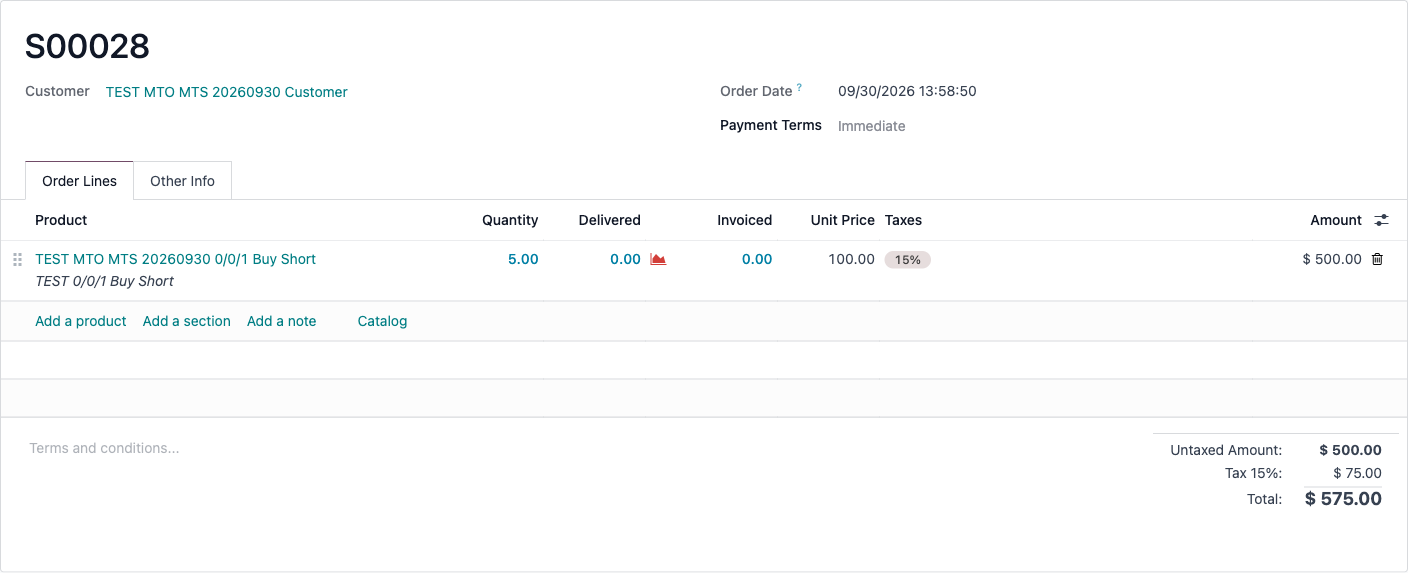
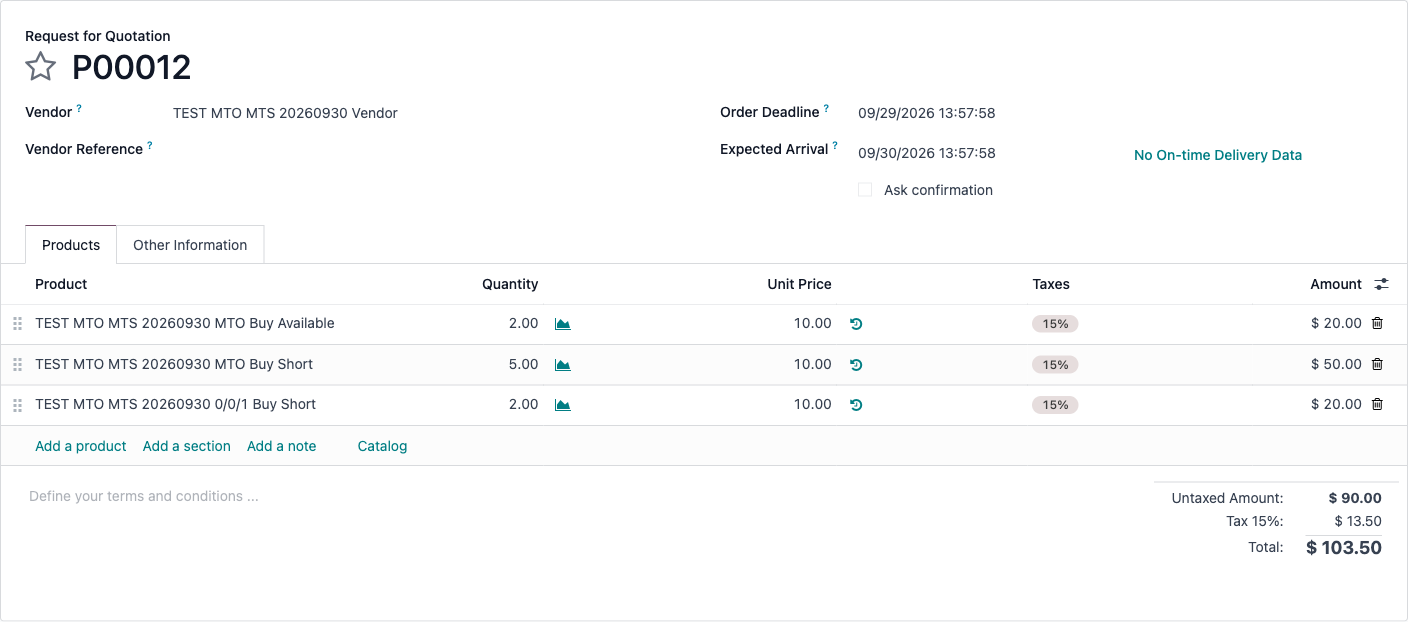
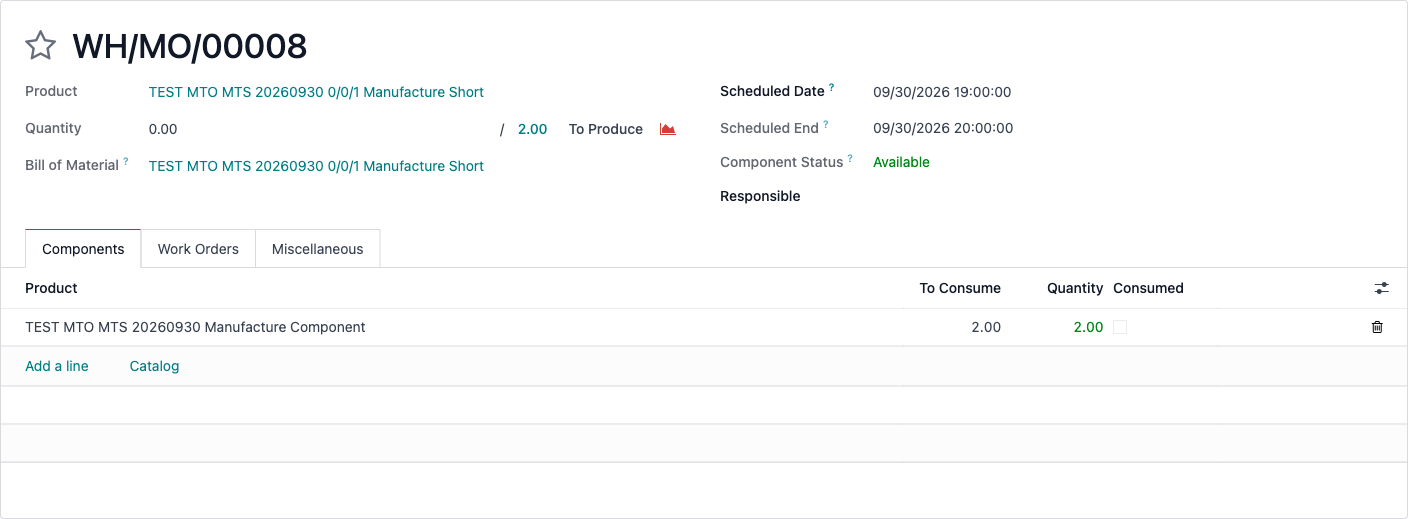
- Confirm a test sales order and review forecast stock, the replenishment quantity, and the resulting purchase or manufacturing order before using the rule in production.
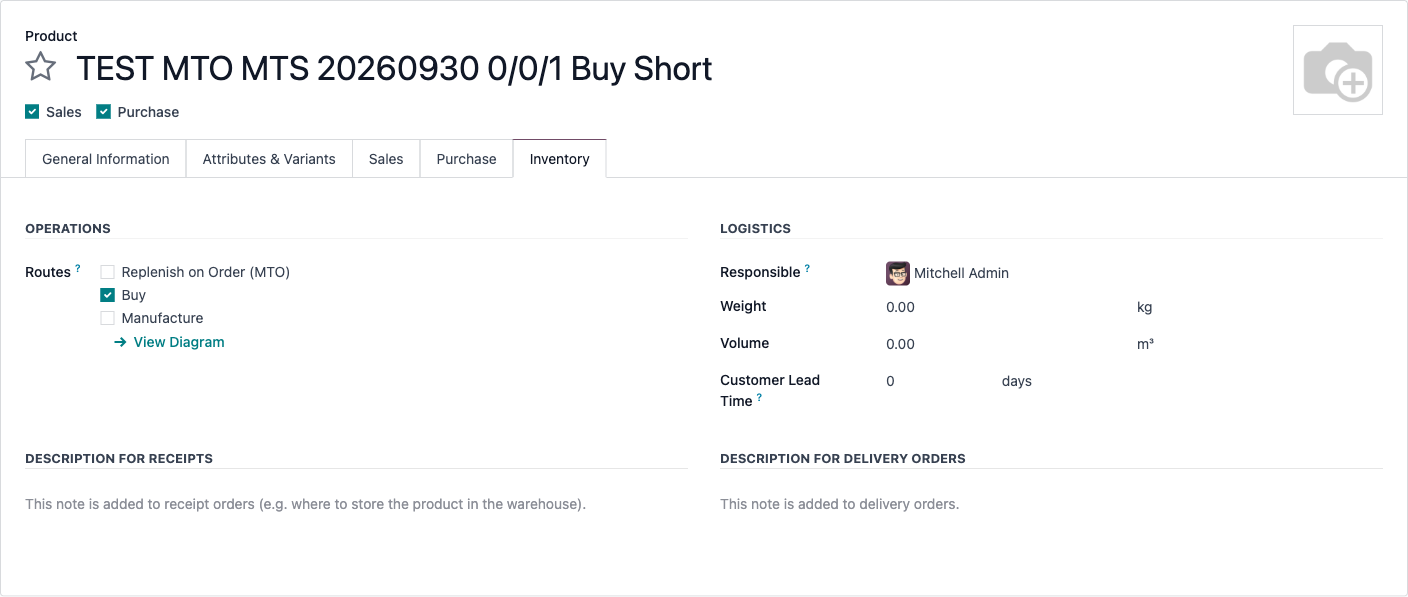

Example: if 3 units are available and a sales order needs 5, the existing 3 can be used, while the rule replenishes the 2-unit shortfall. The exact timing depends on the scheduler and your replenishment configuration.
See the result in Odoo
These screenshots are from our Odoo development site. They show the English interface and test-only products, customers, and vendors. Select an image to view it full size.
Which one should you choose?
Choose MTO when every procurement needs a traceable connection to a particular sales order. Choose a 0/0/1 reordering rule when you want to consume on-hand stock first and only replenish what is missing. If you require both behaviors and a strict sales-order link, evaluate a compatible customization rather than installing an older-version add-on unchanged.
Before rollout, test partial stock, multiple sales orders, lead times, and cancellation scenarios using your own product routes and warehouse settings.
Based on Odoo's MTO documentation and reordering-rule documentation.