
LOCALIZATION · ODOO
Addresses are written differently across countries. Taiwan commonly places the city or county before the district and street, while a U.S. address normally puts the street before the city, state, and ZIP code. Odoo can format report addresses according to the contact's country.
Check the country format before changing it
In native address rendering, Odoo uses the country selected on the contact. If no country format is available, it falls back to the standard layout. Localization modules or earlier configuration may already have adjusted the country format, so inspect the current setting rather than assuming every database uses the same order.
This setting changes how addresses are displayed; it does not rewrite the contact's street, city, state, or ZIP code. Country records are generally shared across companies in the database, so changing one can affect more than one company's reports.
Where to set the report address layout
- With appropriate configuration access, open Contacts → Configuration → Localization → Countries. The menu layout may vary with installed apps and permissions.
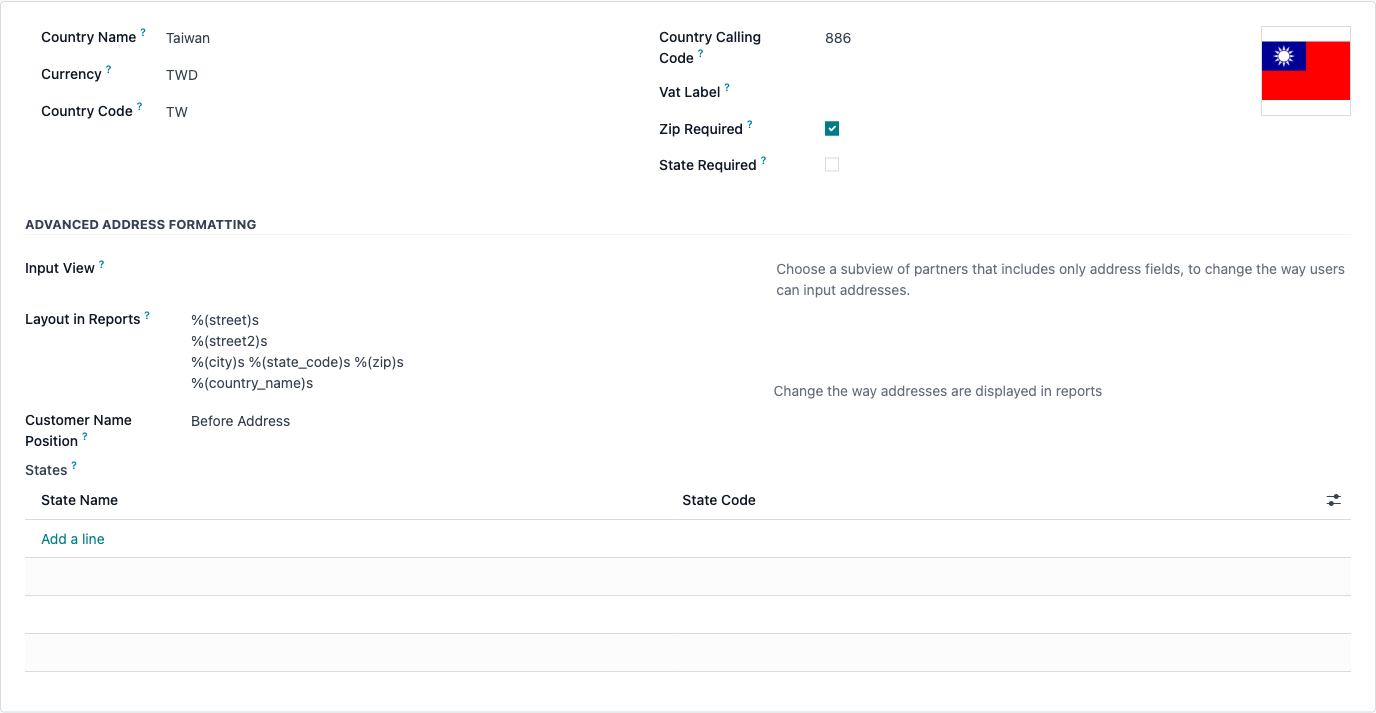
- Open the relevant country, such as Taiwan, and review Layout in Reports. Enable developer mode if you also need to inspect technical fields such as Input View.
- Copy the current format before editing. Arrange the supported placeholders and line breaks to match your reporting needs, then save the setting.
- Check that the test contact has the correct country and address fields. Generate a fresh quotation, invoice, or delivery report that uses the native address widget.
- Review billing, shipping, and company addresses separately, along with other languages and companies that use the same country record.
Common address placeholders
Keep the placeholder syntax exactly as shown. The field name goes inside the parentheses, followed by a lowercase s; do not replace it with a translated field label.
| Placeholder | Meaning |
|---|---|
%(country_name)s | Country name |
%(country_code)s | Two-letter country code, such as TW |
%(state_name)s | State or province name; in Taiwan, this can represent the city or county |
%(state_code)s | State or province code, not necessarily its full name |
%(city)s | City field; in a Taiwan setup, this can hold the district or township |
%(zip)s | Postal or ZIP code |
%(street)s | Street address |
%(street2)s | Additional address line |
A practical format for Taiwan
If your records consistently store the city or county in State, the district in City, and the remaining address in Street, the following is one possible layout. Adapt it to your postal and document requirements rather than treating it as a mandatory national standard.
If the State list does not yet contain Taiwan's cities and counties, have an administrator set up the appropriate state records for Taiwan first. The format cannot display a city or county name that has not been entered or selected on the contact.
%(zip)s %(state_name)s%(city)s%(street)s
%(street2)s
%(country_name)s
With illustrative field values such as ZIP 100, State 臺北市, City 中正區, Street 範例路 1 號, and Street 2 5 樓, the address portion would appear as follows when the country name is displayed in Chinese:
100 臺北市中正區範例路 1 號
5 樓
台灣
The example is not a real delivery address. Use the correct postal code for each contact. Avoid repeating the city or district in multiple fields, and test contacts with an empty second address line. Company or contact names may be rendered separately by the report, so do not add them to the layout without checking for duplication.
Report layout and input form are different settings
Layout in Reports controls native address rendering. Input View points to a contact form view and can change how address fields are entered. Changing the report layout does not automatically rearrange input fields, add a district selector, or validate postal codes. Those needs should be handled separately.
Chinese and English addresses need separate consideration
One country record provides one report address pattern, not a separate pattern for each language. A report's language context can affect translated country names, but it does not automatically turn a Chinese street or district into an English mailing address. Address order and address translation are different requirements.
If you need both domestic Chinese documents and English documents for overseas recipients, decide how to store both address representations and when each report should use them. A country-level change alone may not meet that requirement.
What if the report still uses the old order?
- Verify which contact the report uses: customer, invoice address, delivery address, or your own company.
- Check that the contact has the intended country and that its address fields follow the agreed data-entry convention.
- Generate a new report rather than reopening an already stored PDF. Some reports reuse a saved attachment.
- Check custom QWeb reports and external logistics integrations. A template that prints individual fields directly, or an interface that builds its own address string, may not follow Layout in Reports.
Start with the native country setting for a simple ordering change. If the requirement includes bilingual addresses, district master data, or carrier-specific labels, evaluate the data model and report or integration together.
Discuss address and report localization with RichSoda
References: Odoo country address-format fields; native contact address rendering; Contacts configuration menus.