
ACCOUNT SECURITY · ODOO
Odoo supports native two-factor authentication (2FA), a form of multifactor authentication (MFA). It adds a time-based code from an authenticator app to your password-based login, reducing the risk of someone accessing your account with a stolen password alone.
Before you start
Prepare your Odoo account password and a phone with a TOTP-compatible authenticator, such as Google Authenticator or Microsoft Authenticator. These are examples, not required products. Use your company's approved app and backup policy.
The following steps cover Odoo's native authenticator-based feature. If the 2FA control is missing, ask your administrator to check the official authentication components and your login method. An external identity provider may manage MFA separately.
Step 1: Open your account security settings
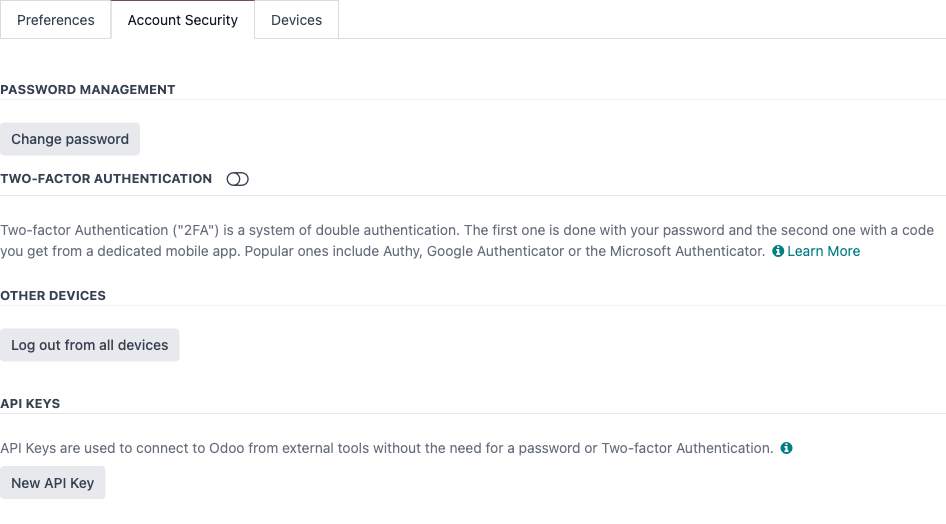
Sign in to Odoo, click your avatar in the upper-right corner, and open Preferences, My Preferences, or My Profile. Open the Account Security or Security tab. Labels vary by interface and language.
Step 2: Start setup and confirm your password
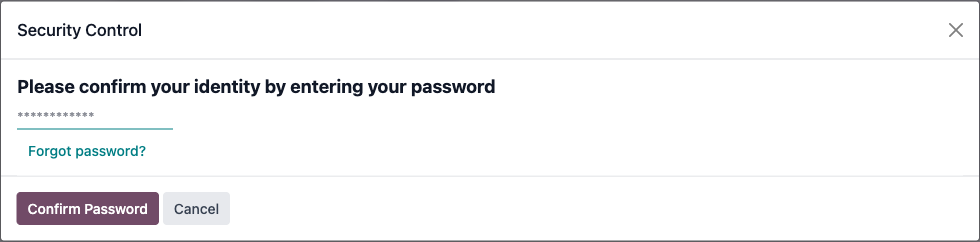
Click the switch beside Two-factor Authentication, or the Enable 2FA button. If Odoo asks you to confirm your identity, enter your current Odoo password and click Confirm Password. This is a security check, not a password change.
Step 3: Add Odoo to your authenticator
In the activation window, open your authenticator app, add an account, and scan the QR code displayed by Odoo. If you cannot scan it, use Cannot scan it? to enter the setup key manually. Confirm that the app entry belongs to the correct Odoo account and website.
Treat the QR code and setup key like a password: anyone who obtains them can generate authentication codes. Do not share them in messages, support tickets, or screenshots. This tutorial intentionally does not display a real QR code or setup key.
Step 4: Enter the code and complete activation
Enter the current six-digit code from the app in Odoo's Verification Code field. Click Activate or Enable Two-Factor Authentication, then confirm that Odoo reports successful activation. Scanning the QR code alone does not complete setup.
Step 5: Test a fresh login
Open a private browser window and visit your usual Odoo address. Sign in with your username and password, then enter the current code from your authenticator when prompted. Keep the original session open until you have verified that the new login works.
If Remember this device is available, use it only on a private, managed device. Never select it on a shared or public computer. A trusted browser may not ask for a code on every login, so use a private window when testing.
What if the code is rejected?
- Check that you selected the right account in the authenticator and entered its latest six-digit code.
- If the code is about to expire, wait for the next one and try again.
- Set your phone's date and time to automatic. Ask your administrator to check server time if the problem continues.
Prepare for a lost or replaced phone
Follow your company's approved authenticator backup or transfer process before replacing or resetting your phone. Confirm that the new phone can sign in before removing access from the old one.
If you lose access to the authenticator, contact an authorized Odoo administrator. After verifying your identity, the administrator can disable 2FA on your user account so you can enroll again. Resetting the account password alone does not remove the second factor. Some localization or security policies can restrict disabling 2FA.
Plan a recovery procedure in advance, especially for administrators. Do not make one person's phone the only way your organization can regain administrative access.
Can the company require 2FA?
Where the native enforcement option is available, administrators can go to Settings → Permissions → Enforce two-factor authentication and select Employees only or All users. All users also includes portal accounts. Availability depends on the installed official authentication components; some setups require the official 2FA by mail component for this setting.
Test enrollment, email delivery where applicable, portal access, and recovery with a small group before enforcing the policy. Enabling 2FA on your own account does not automatically enable it for everyone.
2FA adds protection but does not replace unique passwords, phishing awareness, access reviews, or API key controls. API keys are a separate authentication path and must be managed separately.
Discuss Odoo account security with RichSoda
References: Odoo's two-factor authentication guide; current account-security interface and enforcement guidance; native authenticator activation logic.